



Bidirectional Charging
Learn the basics of Volkswagen ID.4 bidirectional charging, including energy flow concepts, home power use and vehicle-to-home charging capability.
Read guide




The quick connection function in the Volkswagen ID.4 allows you to establish a secure wireless local network quickly and effortlessly. In many regions, this process can also be completed conveniently by scanning a QR code, making connectivity faster and more intuitive.
WPS with the Infotainment system as a Wi-Fi hotspot
Requirements
✓ The Wi-Fi hotspot of the Volkswagen ID.4 Infotainment system is activated.
✓ The external Wi-Fi device supports WPS functionality.
1. Tap HOME
 Wi-Fi.
2. Tap Quick connection with Infotainment system.
3. Activate WPS on the external Wi-Fi device that you want to connect.
The Wi-Fi connection will be established automatically in the Volkswagen ID.4. Additional confirmation steps may be required depending on the device.
4. Repeat the process to connect additional Wi-Fi devices to the Volkswagen ID.4 hotspot.
Only one WPS connection can be established at a time. If multiple connection attempts are initiated simultaneously, all attempts may fail.
Setting up a Wi-Fi connection via NFC
The Volkswagen ID.4 also allows quick connection via NFC technology using the wireless charging shelf in the center console.
 The availability of NFC-based Wi-Fi connection depends on the smartphone, its operating system, and the Infotainment system version.
Requirements
✓ NFC functionality and a wireless charging shelf are available in the Volkswagen ID.4.
✓ NFC is enabled on the mobile device.
✓ The Volkswagen ID.4 Wi-Fi hotspot is active.
1. Tap HOME
 Wi-Fi.
2. Tap Quick connection with Infotainment system.
3. Unlock the mobile device and place it on the wireless charging shelf.
The device will automatically connect as a client to the Volkswagen ID.4 Wi-Fi hotspot.
 The wireless charging function is temporarily disabled while the Wi-Fi settings menu is open and resumes once you exit the menu.
 Older devices may have limited compatibility. Always ensure that your device software is up to date for optimal performance in the Volkswagen ID.4.
Setting up a Wi-Fi connection via QR code
The Volkswagen ID.4 also supports fast Wi-Fi pairing through QR code scanning.
Requirements
✓ The Wi-Fi hotspot of the Volkswagen ID.4 is activated.
✓ A QR code scanning application is installed on the mobile device.
1. Tap HOME
 Wi-Fi.
2. Tap Quick connection with Infotainment system.
3. Scan the QR code displayed on the Volkswagen ID.4 screen using the mobile device.
The device will connect automatically to the Volkswagen ID.4 Wi-Fi hotspot.
Introduction
App-Connect in the Volkswagen ID.4 enables seamless integration of smartphone applications, allowing selected apps and functions to be displayed and controlled directly via the Infotainment system.
To use App-Connect, the mobile device must typically be connected via a USB interface with data transfer capability, although wireless functionality is also supported depending on the system.
Wireless App-Connect features in the Volkswagen ID.4 may utilize Bluetooth and Wi-Fi connections to enhance user convenience.
The following technologies may be available:
Using quick connection features in the Volkswagen ID.4 improves connectivity, reduces setup time, and enhances the overall digital driving experience.
The availability of App-Connect technologies in the Volkswagen ID.4 depends on regional specifications and the type of smartphone being used, meaning certain features may vary between countries and devices.
Technologies such as MirrorLink, Apple CarPlay, and Android Auto are developed and maintained by third-party providers. While the Volkswagen ID.4 supports these systems, Volkswagen is not responsible if these services are modified, discontinued, or become unavailable during the vehicle’s lifecycle.
For the latest compatibility details and updates related to App-Connect in the Volkswagen ID.4, refer to the official Volkswagen website.
App-Connect wireless function in the event of border crossings
When traveling across international borders in your Volkswagen ID.4, especially into regions with different radio frequency regulations, the following points should be considered:
These restrictions do not apply to wired connections, which remain fully operational in the Volkswagen ID.4.
Opening the App-Connect main menu
The method of accessing the App-Connect main menu in the Volkswagen ID.4 may vary depending on the Infotainment system version installed.
1. Tap HOME
 .
.
Setting up App-Connect Wireless
To use App-Connect Wireless in the Volkswagen ID.4, the smartphone must first be paired with the Infotainment system.
Connecting a cell phone for the first time
1. Unlock the smartphone.
2. Activate Wi-Fi and Bluetooth on the device.
3. Connect the smartphone to the Volkswagen ID.4 via USB cable or Bluetooth.
4. Open the App-Connect main menu if it does not launch automatically.
5. Select the connected smartphone and choose the preferred App-Connect technology.
6. Grant the required permissions on the smartphone to allow communication with the Volkswagen ID.4 Infotainment system.
7. Disconnect the USB cable and reconnect wirelessly via Wi-Fi or Bluetooth.
The App-Connect Wireless setup process in the Volkswagen ID.4 is now complete.
Once paired, the smartphone can automatically reconnect to the Volkswagen ID.4 in the future without requiring a wired connection.
If any permission requests were declined or dismissed during setup, App-Connect Wireless may not function correctly. In this case, it is recommended to remove the device from both the smartphone and the Volkswagen ID.4 system settings and repeat the pairing process.
 App-Connect Wireless functionality in the Volkswagen ID.4 may not be supported by all smartphones or operating systems.
WARNING
Using smartphone applications while driving the Volkswagen ID.4 can distract the driver and significantly increase the risk of accidents, including serious or fatal injuries.
WARNING
Improper use of applications or incompatible apps in the Volkswagen ID.4 may result in system malfunctions, vehicle damage, or dangerous driving situations.
 Volkswagen is not liable for any damage or malfunctions in the Volkswagen ID.4 caused by low-quality or defective third-party applications, insufficient network coverage, data loss, misuse of connected devices, or malware affecting smartphones, tablets, or other data carriers.
For optimal performance, always keep your smartphone software and apps updated when using App-Connect in the Volkswagen ID.4.
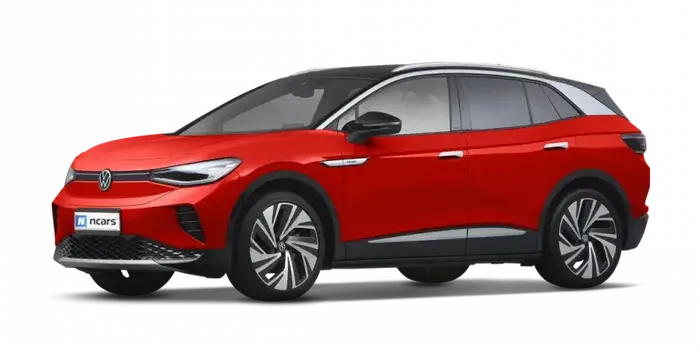
Selected owner and service information from our Volkswagen ID.4 manual library.
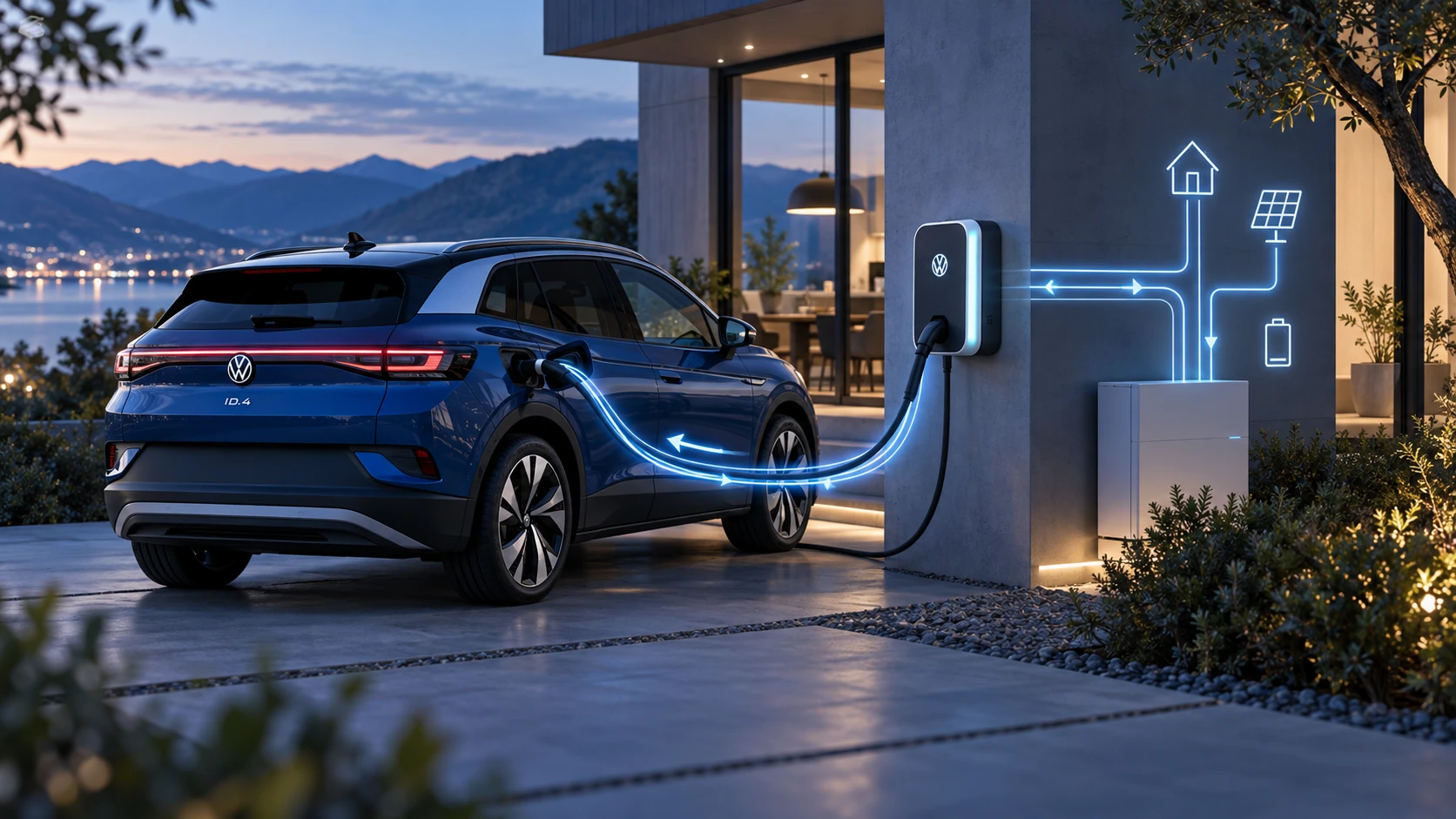 ID.4 Guide
Learn the basics of Volkswagen ID.4 bidirectional charging, including energy flow concepts, home power use and vehicle-to-home charging capability.
Read guide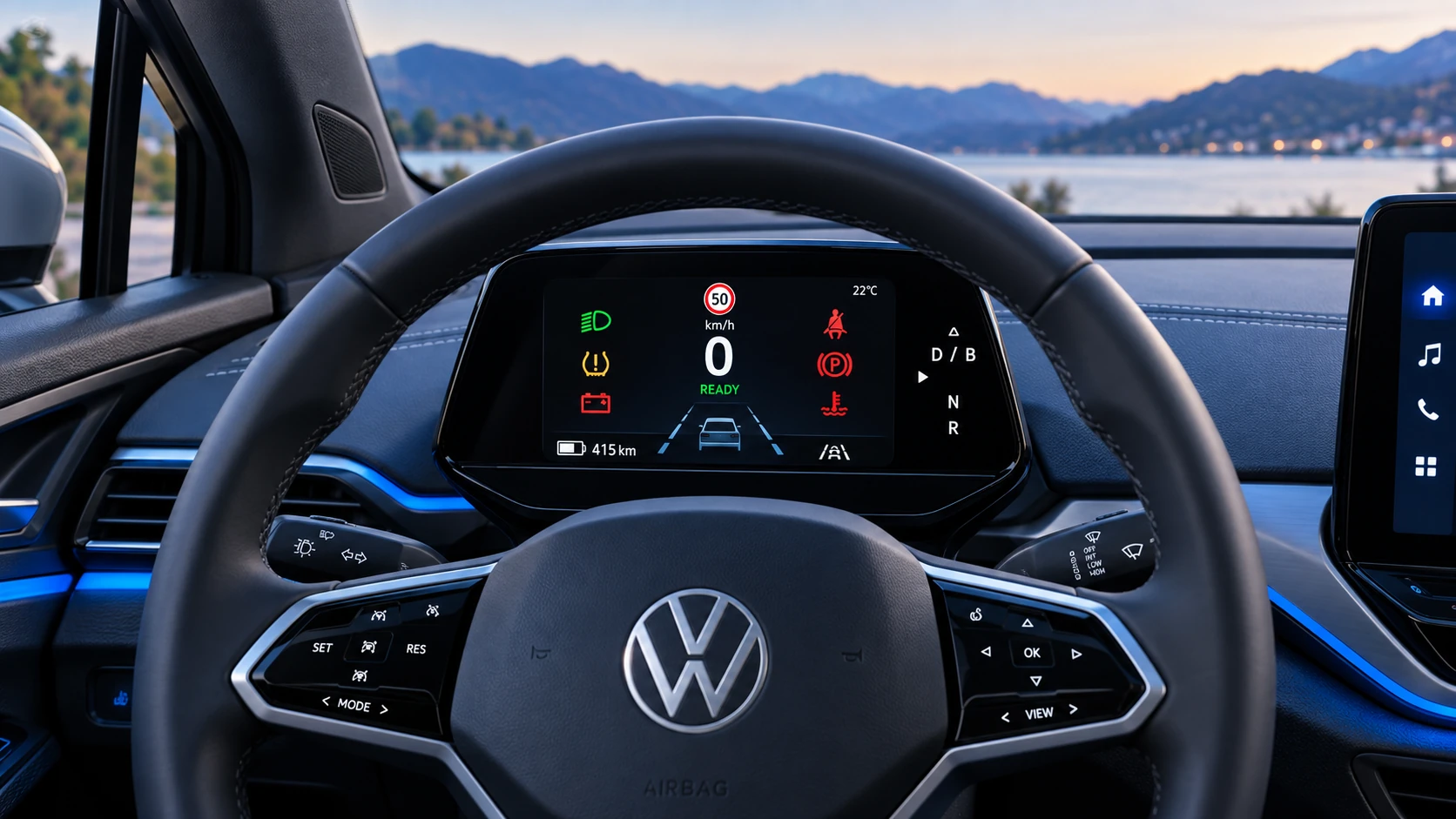 ID.4 Guide
A practical overview of Volkswagen ID.4 instrument cluster symbols, warning lights and status indicators to help drivers understand the display quickly.
Read guide