



Switching the Ignition On and Off
How to switch the Volkswagen ID.4 ignition on and off correctly, including the basic operating conditions and what the driver should expect from the vehicle.
Read guide




Opening the digital manual of the Infotainment system (if available)
Comprehensive instructions and additional tips for using the Volkswagen ID.4 Infotainment system can be accessed via the integrated digital manual.
1. Tap HOME
 .
.
Switching the Infotainment system on and off
When entering the Volkswagen ID.4, the Infotainment system activates automatically. It switches off when the driver exits the vehicle.
The system starts when the ignition is switched on, unless it was manually turned off previously.
If the Volkswagen ID.4 Infotainment system becomes unresponsive, it will attempt to restart automatically. If necessary, press and hold the sensor area for approximately 15 seconds to perform a manual reset.
The system restores the last used volume level, provided it does not exceed the predefined maximum startup volume.
 If the vehicle is left without active ignition, the Infotainment system switches off automatically.
 If manually activated without ignition, the system will automatically shut down after approximately 30 minutes of inactivity.
Opening the home screen
1. Tap HOME.
Main menus on the home screen
The Volkswagen ID.4 Infotainment system offers the following main menu options, depending on equipment:
 Ambient lighting settings.
 App-Connect.
 Assistance systems.
 Vehicle settings.
 Help section with tutorials and quick guides.
 ID. software information.
 Sound settings.
 Charging options.
 Navigation system.
 User management.
 Radio/Media.
 Legal information.
 System setup.
 Shop (In-Car Shop features).
 Stationary air conditioning.
 Telephone connectivity.
Configuring the home screen
The Volkswagen ID.4 allows customization of the home screen layout, enabling drivers to personalize function keys and views.
1. Tap and hold a function key until it is highlighted.
2. Drag the function key to the desired position and release it.
Scrolling through lists, switching titles
Select functions, settings, or media tracks using the touchscreen interface.
Moving objects, adjusting volume
Adjust sliders or reposition interface elements by dragging them across the screen in the Volkswagen ID.4.
Personalization options depend on vehicle equipment and software version.
Zooming in or out of pictures and maps shown on the screen
Tip: Use two fingers for precise control.
1. Place two fingers on the screen simultaneously.
Brief interruptions to operation
Frequent interaction with the Volkswagen ID.4 Infotainment system within a short period may cause temporary delays. Normal operation resumes automatically after a brief moment.
This advanced digital interface ensures that the Volkswagen ID.4 delivers a modern, responsive, and highly customizable driving experience for maximum comfort and usability.
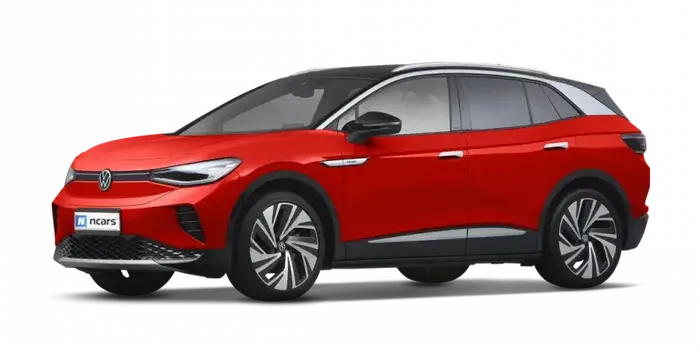
Selected owner and service information from our Volkswagen ID.4 manual library.
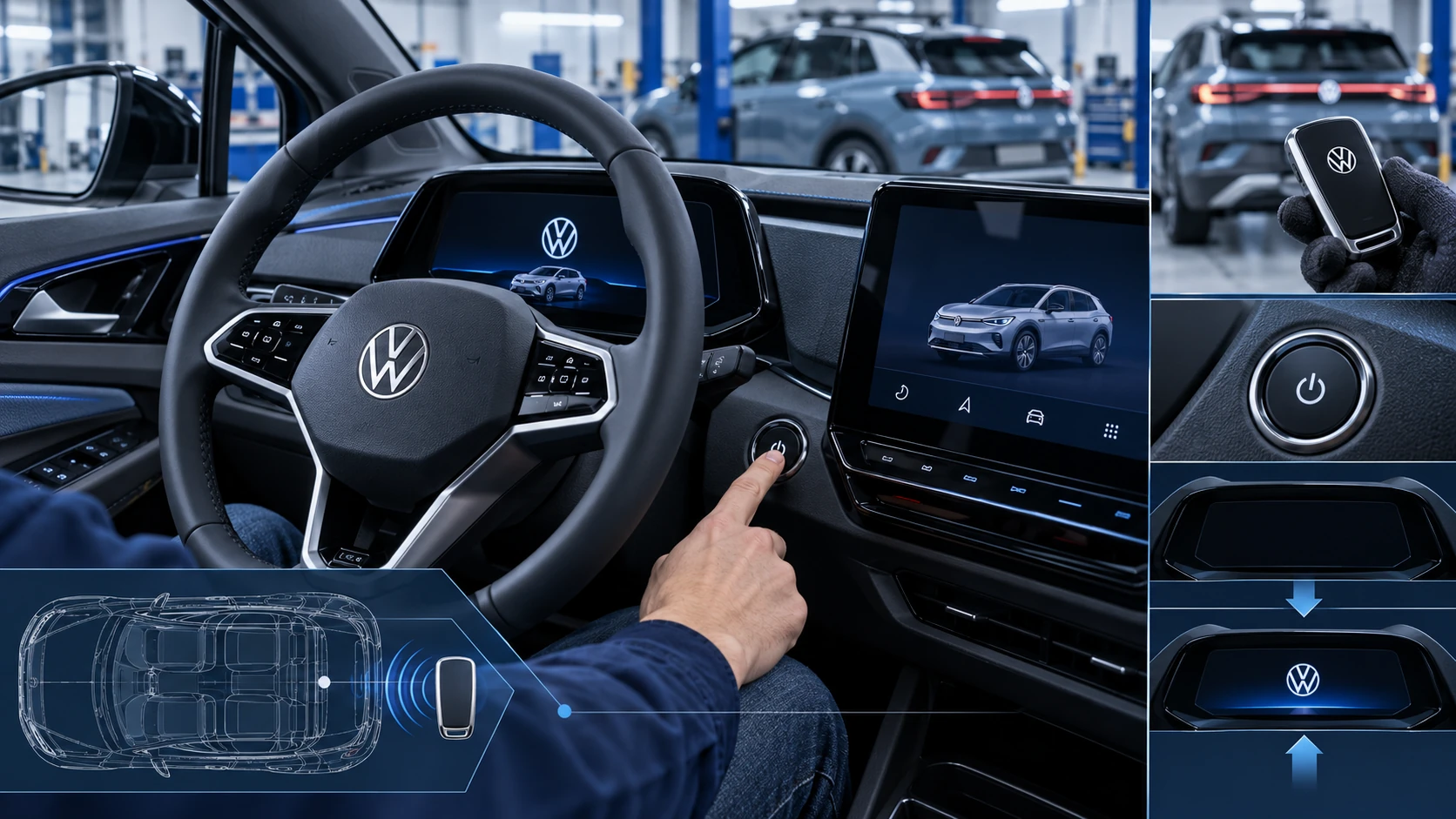 ID.4 Guide
How to switch the Volkswagen ID.4 ignition on and off correctly, including the basic operating conditions and what the driver should expect from the vehicle.
Read guide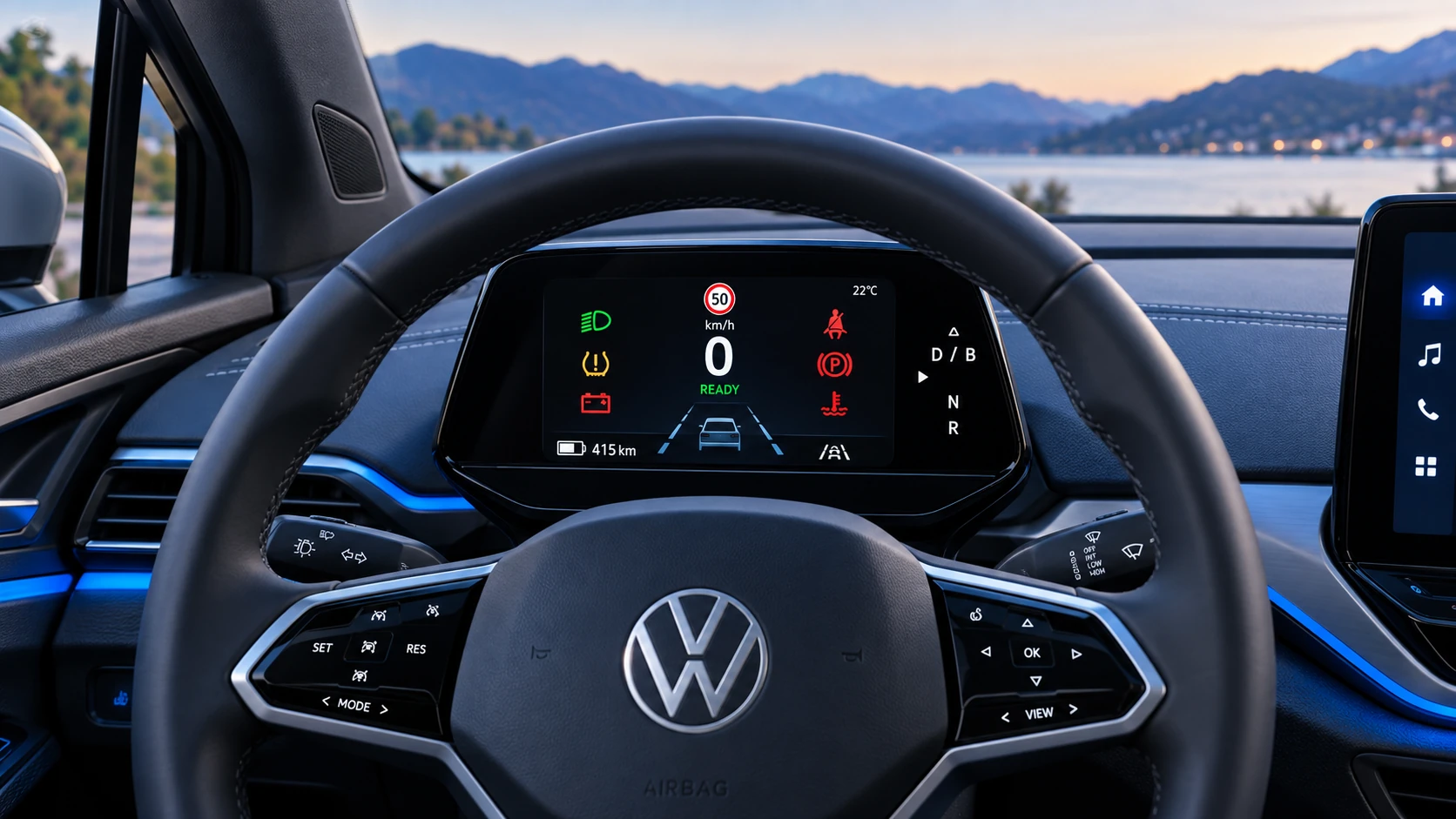 ID.4 Guide
A practical overview of Volkswagen ID.4 instrument cluster symbols, warning lights and status indicators to help drivers understand the display quickly.
Read guide